

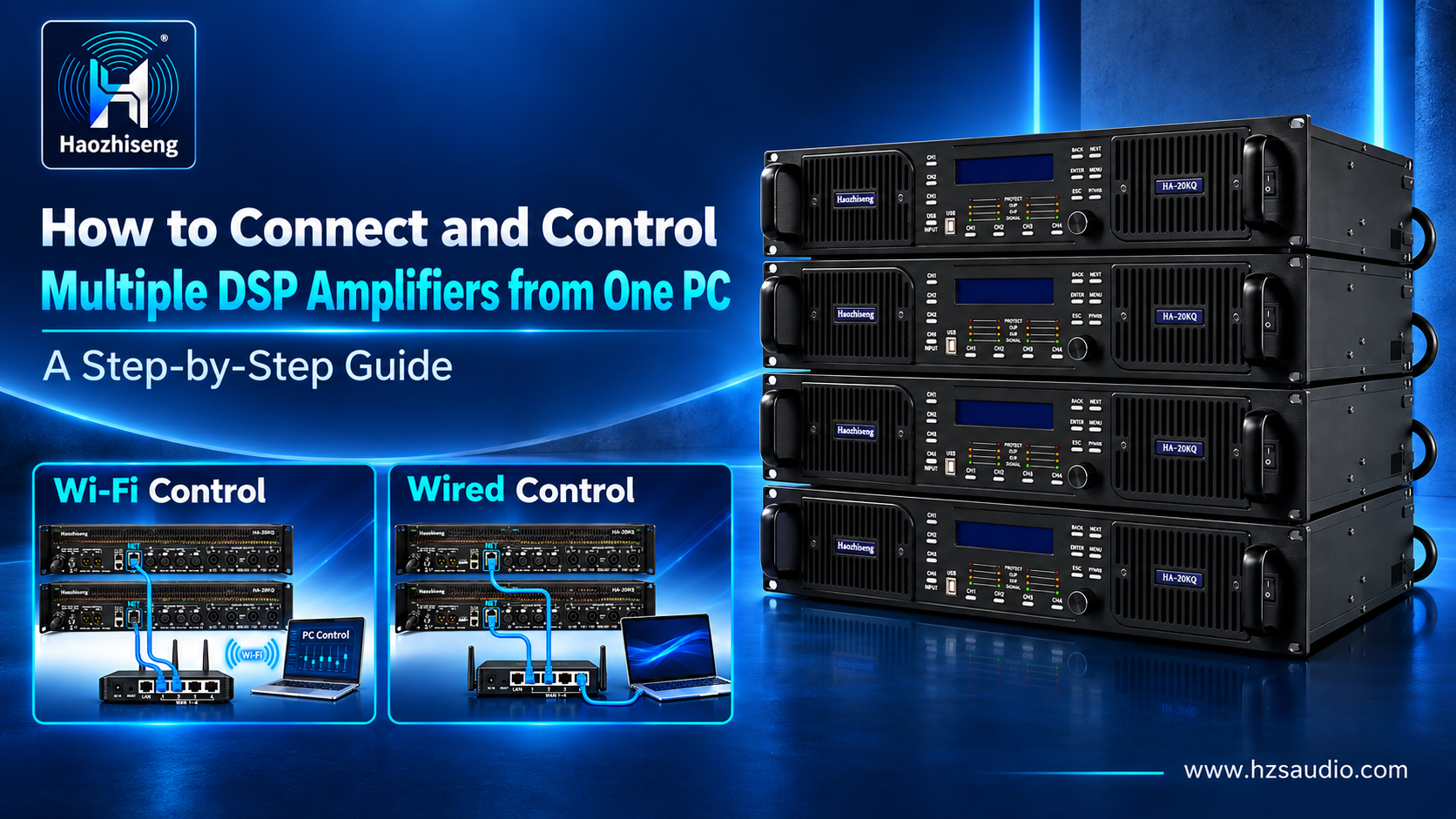
How to Connect and Control Multiple DSP Amplifiers from One PC: A Step-by-Step Guide
Setting up several DSP amplifiers one by one takes time. With the right connection and compatible software, you can manage multiple amplifiers from one PC, adjust their DSP settings, and save configurations for future events or installations.
In this guide, we’ll cover three connection methods for Haozhiseng Audio DSP amplifiers: USB, RS-485, and network control through a router.
Before You Start
Download the software for your amplifier from the Haozhiseng Audio Downloads page. The shared DSP Software V2.2.5 package supports both the HA20KQ and HA-DSP10KQ. If you plan to use RS-485, check whether your PC also needs the communication driver listed on the download page.
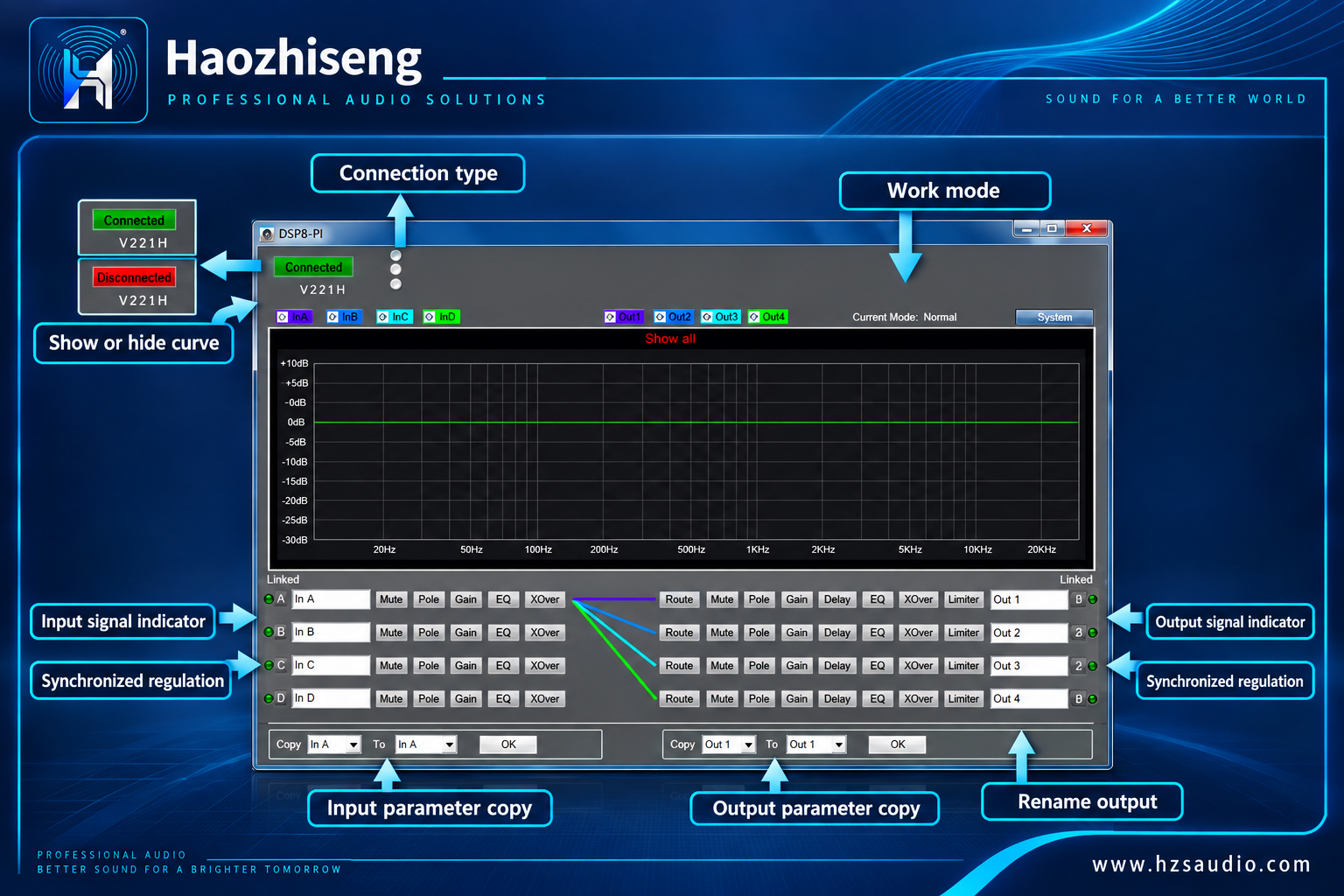
Before adjusting DSP settings, keep amplifier outputs muted or at a safe level. Give each amplifier a clear name, such as Left Main, Right Main, or Subwoofer 1, so you can identify it in the software.
1. Connect One DSP Amplifier by USB
USB is the simplest way to configure a single amplifier.
- Connect the PC to the amplifier’s USB control port with the appropriate cable.
- Power on the amplifier and open the compatible DSP software.
- Select the device and confirm that the software shows it as connected.
- Adjust the required settings, then save a backup of your preset.
This method is useful when preparing an amplifier before adding it to a larger system.
2. Connect Multiple Amplifiers by RS-485
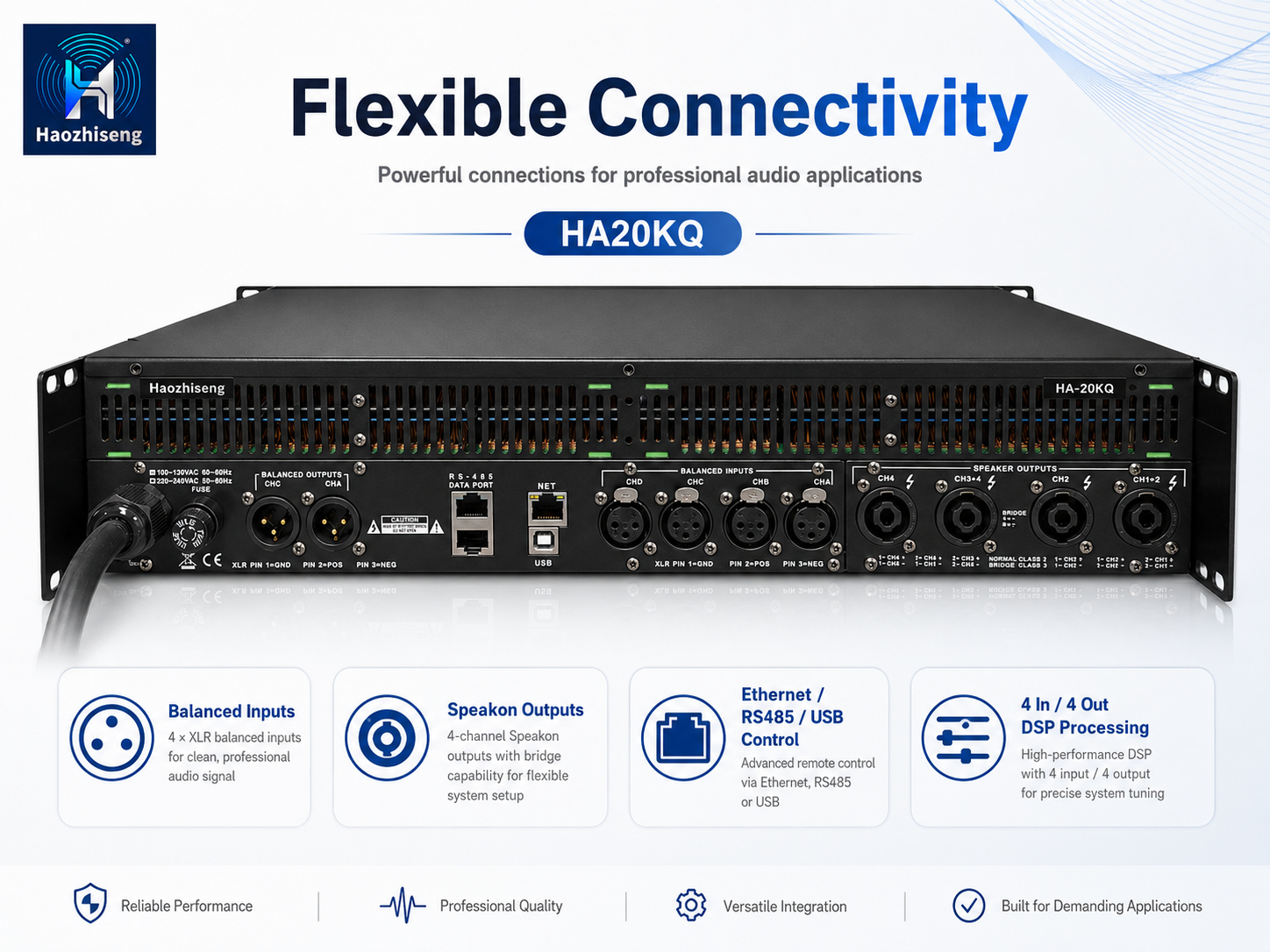
RS-485 allows a PC to communicate with multiple compatible amplifiers. You’ll need a USB-to-RS-485 adapter and the cables specified for your amplifier model.
- Connect the adapter’s USB end to the PC and install its driver if required.
- Connect the RS-485 side to the first amplifier.
- Connect the remaining amplifiers according to the model’s RS-485 wiring instructions.
- Set any required device addresses and communication settings.
- Open the DSP software and confirm that each amplifier appears as a separate device.
If a cable, address, or device in the connection chain has a problem, one or more amplifiers may become unreachable from the PC. When troubleshooting, test one amplifier first, then add the others one at a time.
Note: RS-485 is sometimes incorrectly called “RJ485.” Follow the port labels, pin assignments, and wiring instructions for your exact amplifier model.
3. Control Multiple Amplifiers Through a Router
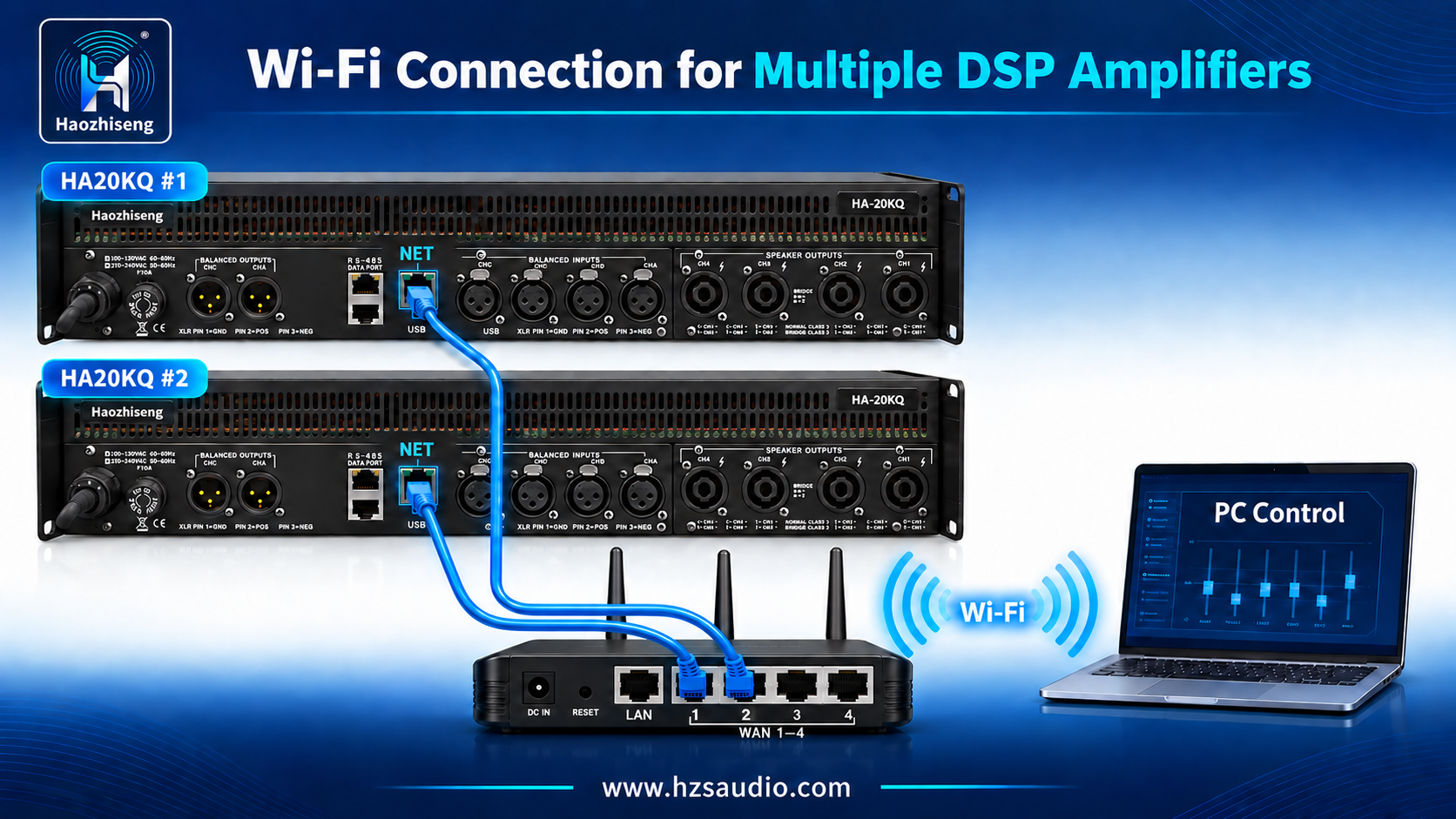
Compatible amplifiers with a NET/Ethernet control port can connect to a local network. The PC can join that network either by Ethernet cable or through the router’s Wi-Fi.
Option A: PC Connected by Wi-Fi
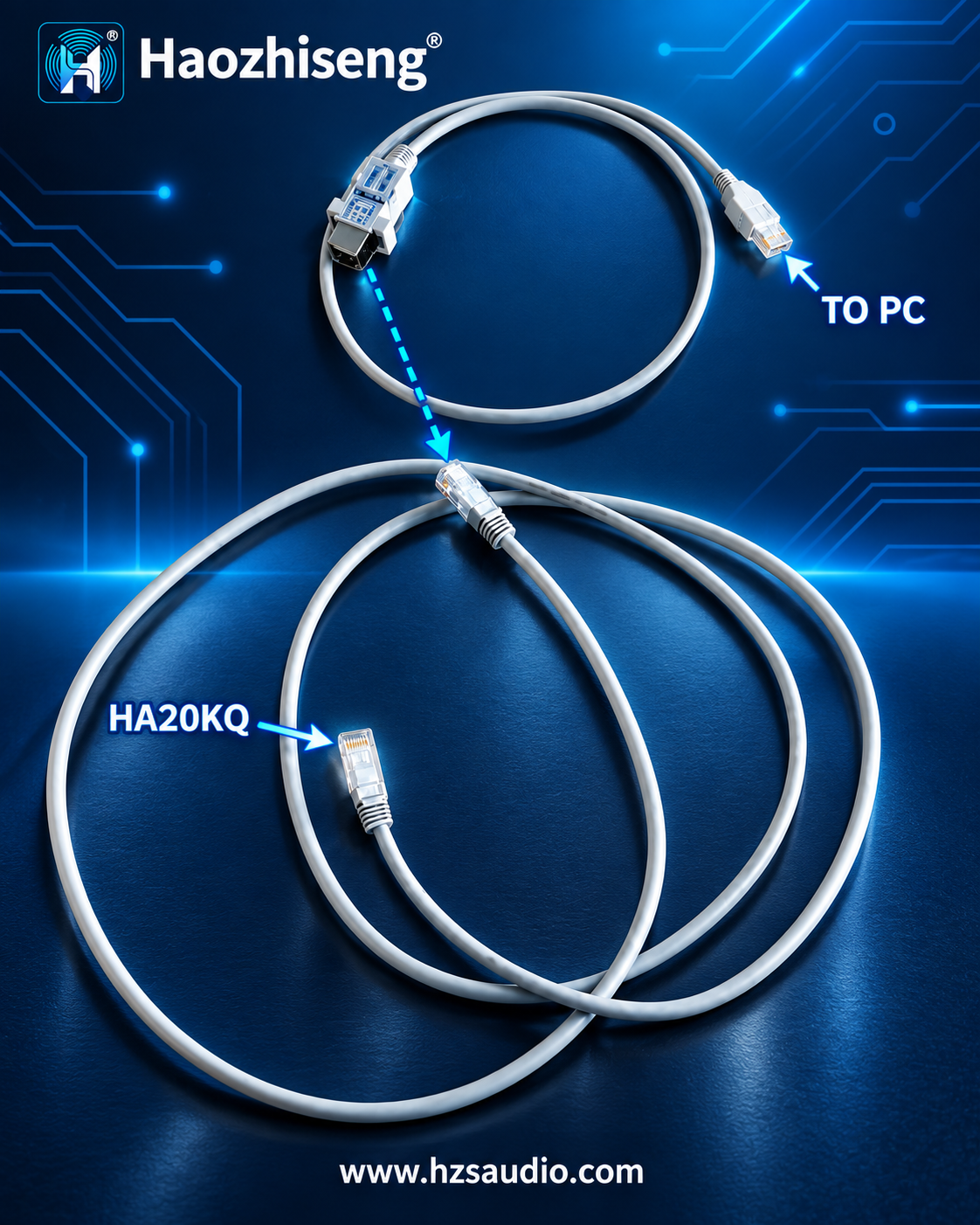
- Connect each amplifier’s NET port to a separate network port on the router using an RJ45 cable.
- Connect the PC to the router’s Wi-Fi network.
- Confirm that the PC and amplifiers are reachable on the same local network.
- Open the DSP software, search for devices, and identify each amplifier.
The amplifiers remain connected to the router by cable; only the connection between the PC and router is wireless.
Option B: PC Connected by Ethernet Cable
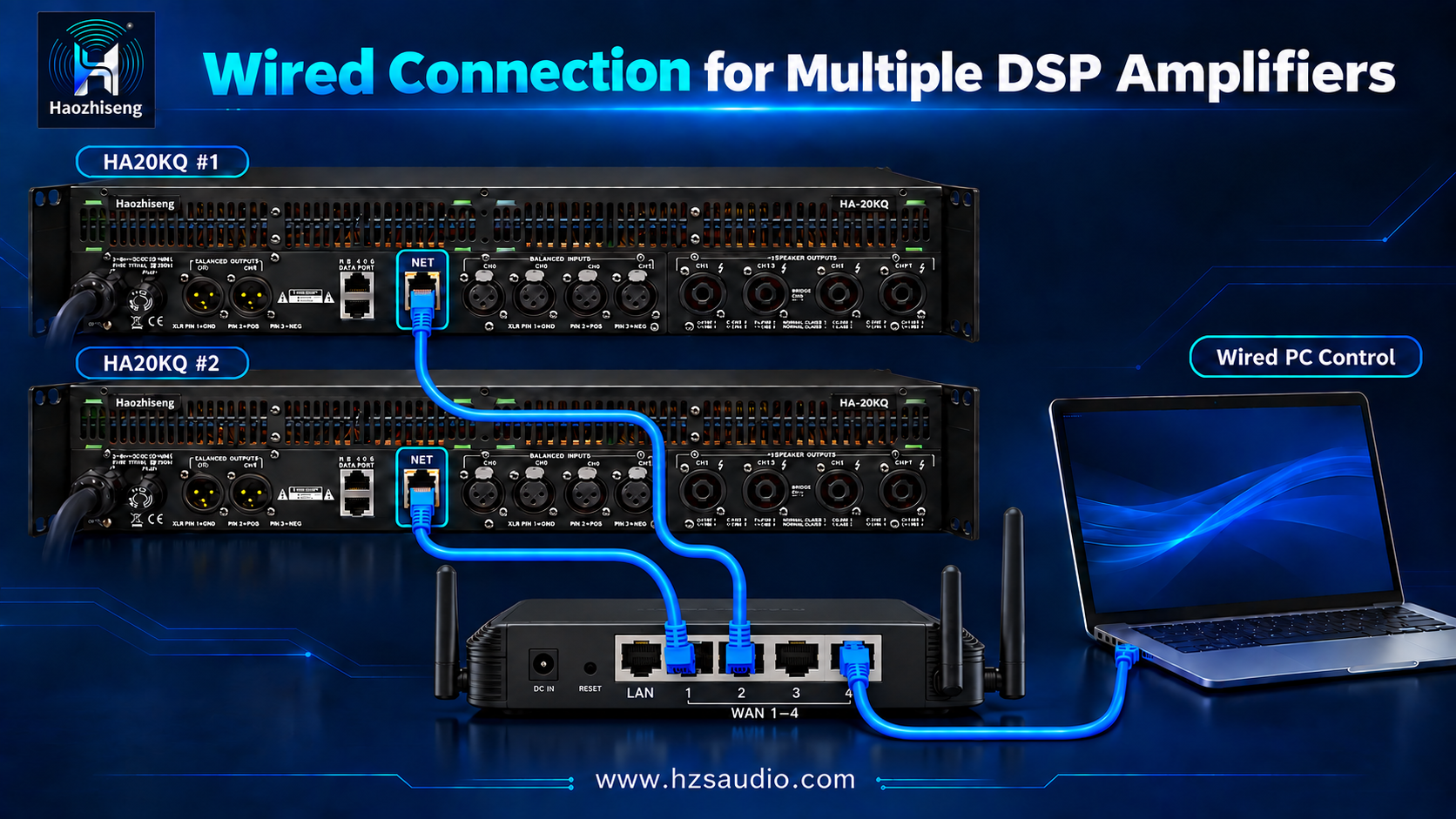
- Connect each amplifier’s NET port to a separate network port on the router.
- Connect the PC to the same local network using its own Ethernet cable.
- Open the DSP software and check that every amplifier appears separately.
The router shown in our connection illustrations has one port marked LAN and four marked WAN 1–4. Before following the illustrated port positions, confirm that your router is configured so the connected devices can communicate on the same local network. If its WAN ports are isolated, use a suitable network switch or a correctly configured router.
What If the PC Cannot Find an Amplifier?
Check these items before changing DSP settings:
- Software and driver: Confirm that you installed the package for your amplifier model and the RS-485 driver if needed.
- Control port: Use the correct USB, RS-485, or NET control port.
- Cables: Check that every connector is fully seated.
- Network settings: For router control, make sure the PC and amplifiers can communicate on the same local network.
- Device addresses: For RS-485 control, check the required addressing and communication settings.
- PC network adapter: If the PC has both Wi-Fi and Ethernet enabled, confirm that the software is using the intended connection.
Once all amplifiers appear in the software, select each unit by name, verify its channels, and save a backup of the finished configuration.
Recommended Haozhiseng Audio DSP Amplifiers
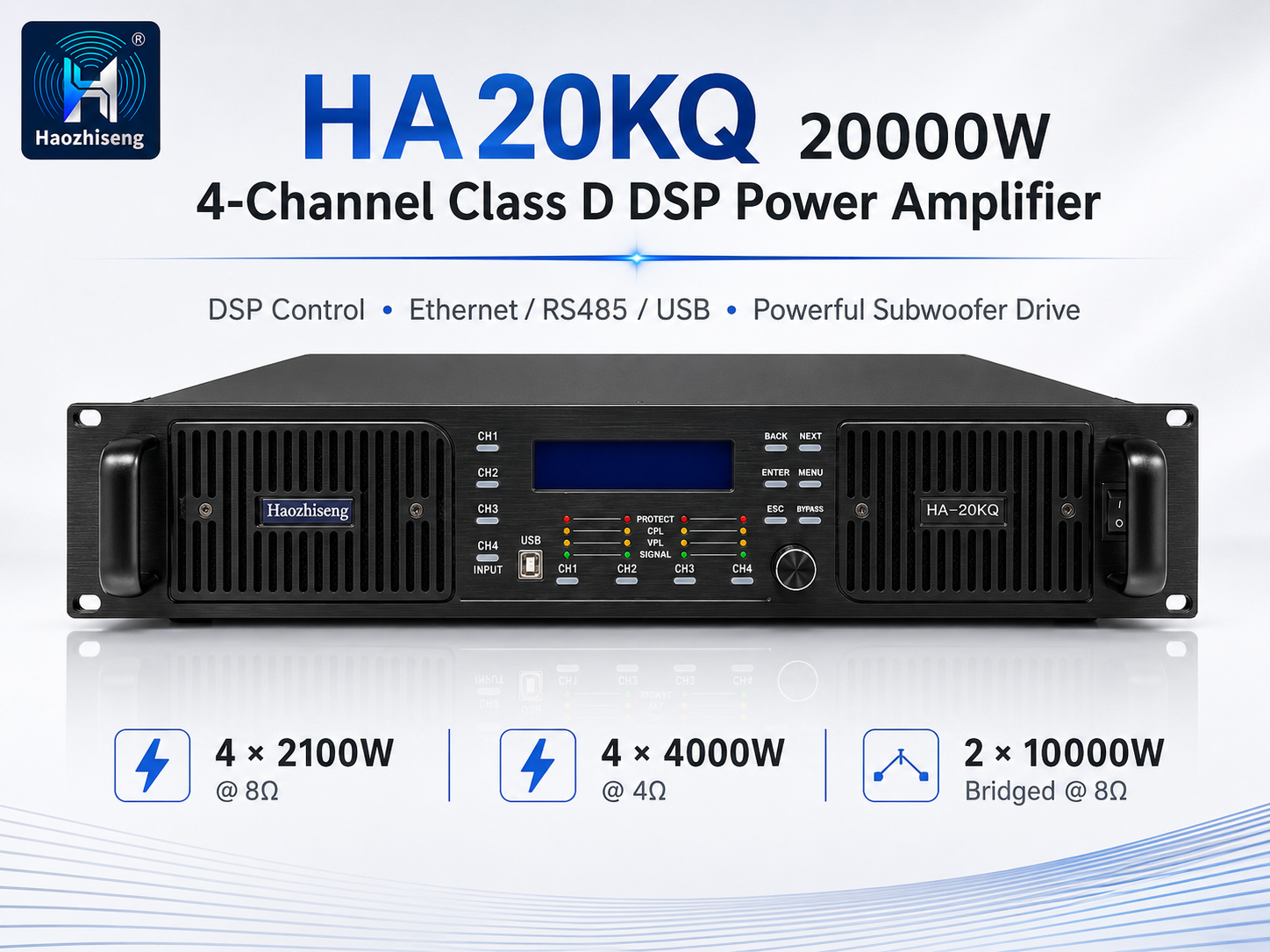
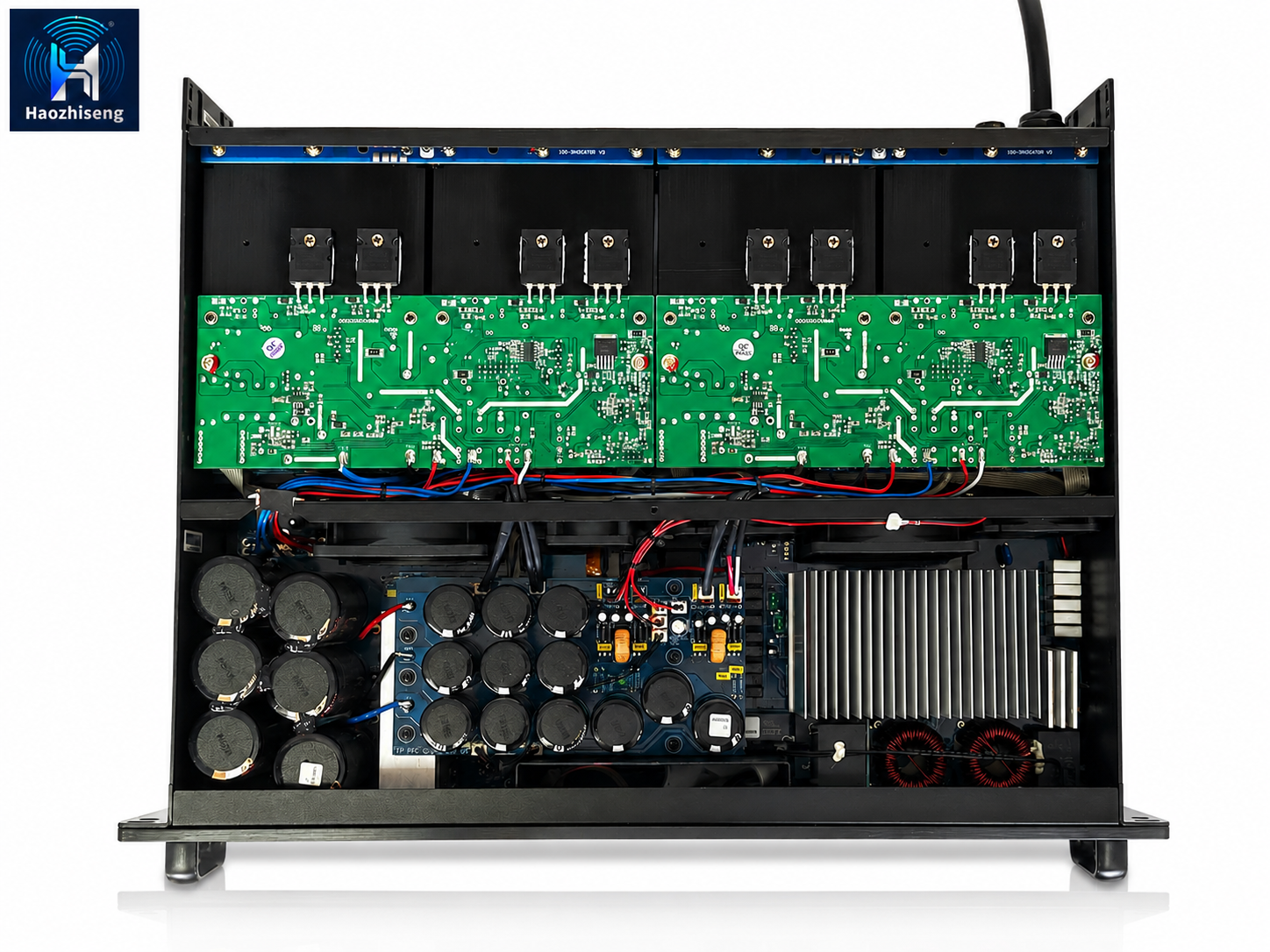
HA20KQ — 20,000W 4-Channel Class D DSP Subwoofer Power Amplifier
Designed for high-output subwoofer systems, the HA20KQ delivers 4 × 2,100W at 8Ω or 4 × 4,000W at 4Ω. Its built-in DSP and USB, RS-485, and Ethernet control options make it a strong choice for large bass systems that need centralized setup.
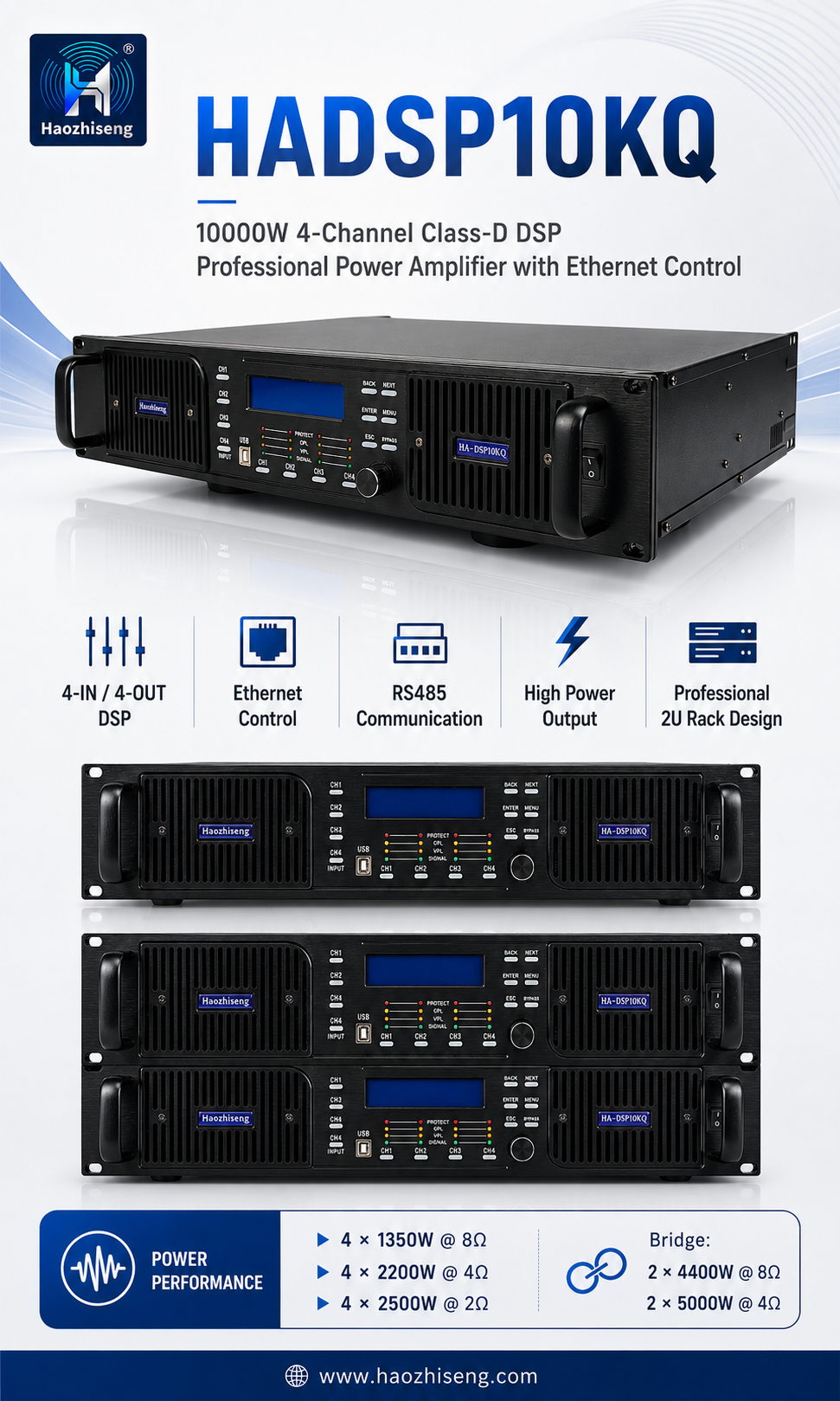
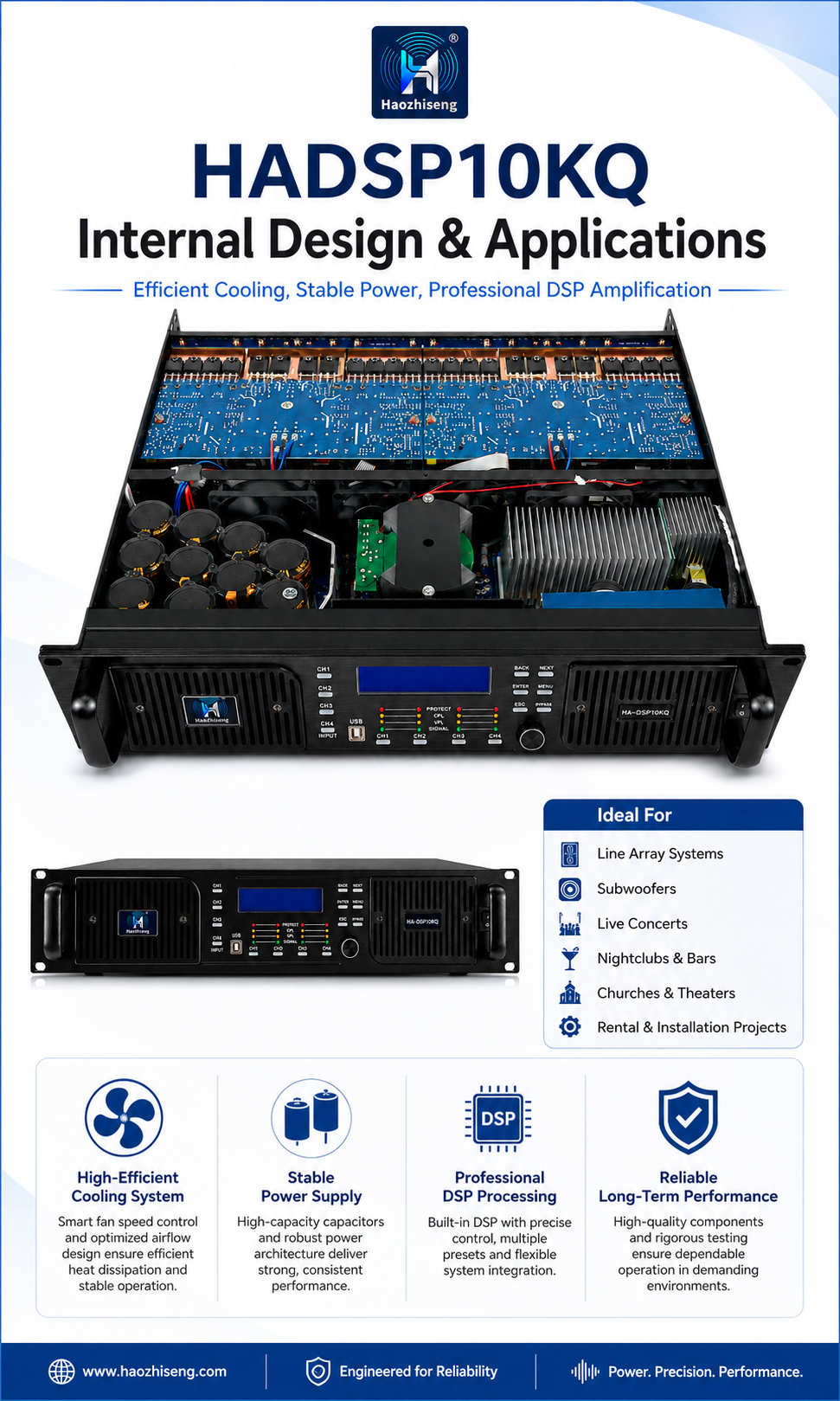
HA-DSP10KQ — 10,000W 4-Channel Class D DSP Power Amplifier
The HA-DSP10KQ combines four amplifier channels, built-in DSP, and network control. It delivers 4 × 1,350W at 8Ω, 4 × 2,200W at 4Ω, or 4 × 2,500W at 2Ω. It is suitable for professional PA systems that require flexible tuning and PC-based control.
Ready to Set Up Your System?
Download the Haozhiseng Audio DSP software and explore the HA20KQ or HA-DSP10KQ to find the right amplifier for your project. If you need help with your connection setup, send us your amplifier models and router details.
Found this guide helpful? Share it with a sound engineer, system installer, or rental team who works with multiple DSP amplifiers.
Leave a Reply